Sony is ditching physical discs, so here's how I'll play PS2 games using original hardware and handhelds instead of PS5 games in protest
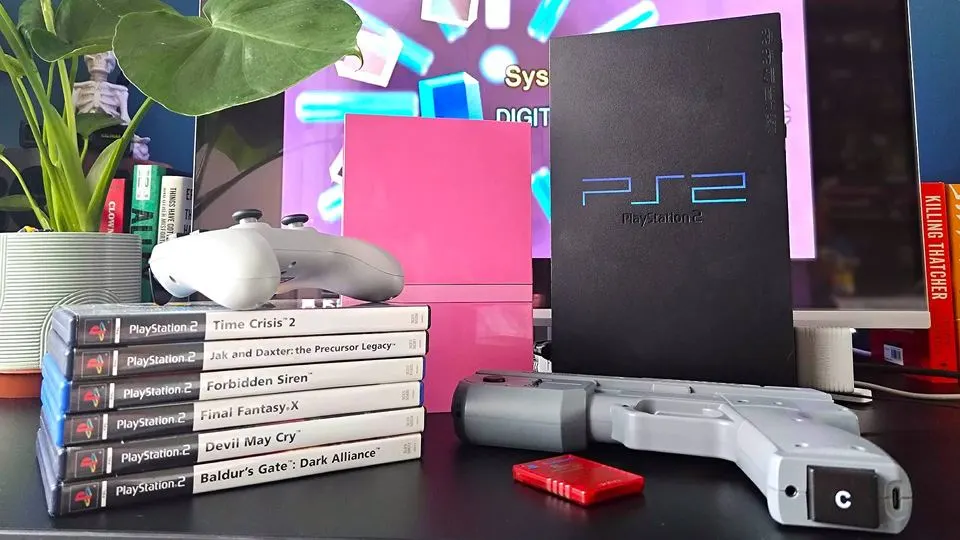
For years now, I’ve been asked by friends and family how to play PS2 games now that the console is considered “retro.” It’s tempting to simply point towards an original console and give them a big thumbs up, but even if you do have Sony’s 2000s system to hand, replaying PlayStation 2 classics in the modern age can feel like a rigmarole rabbit hole.
Jump to: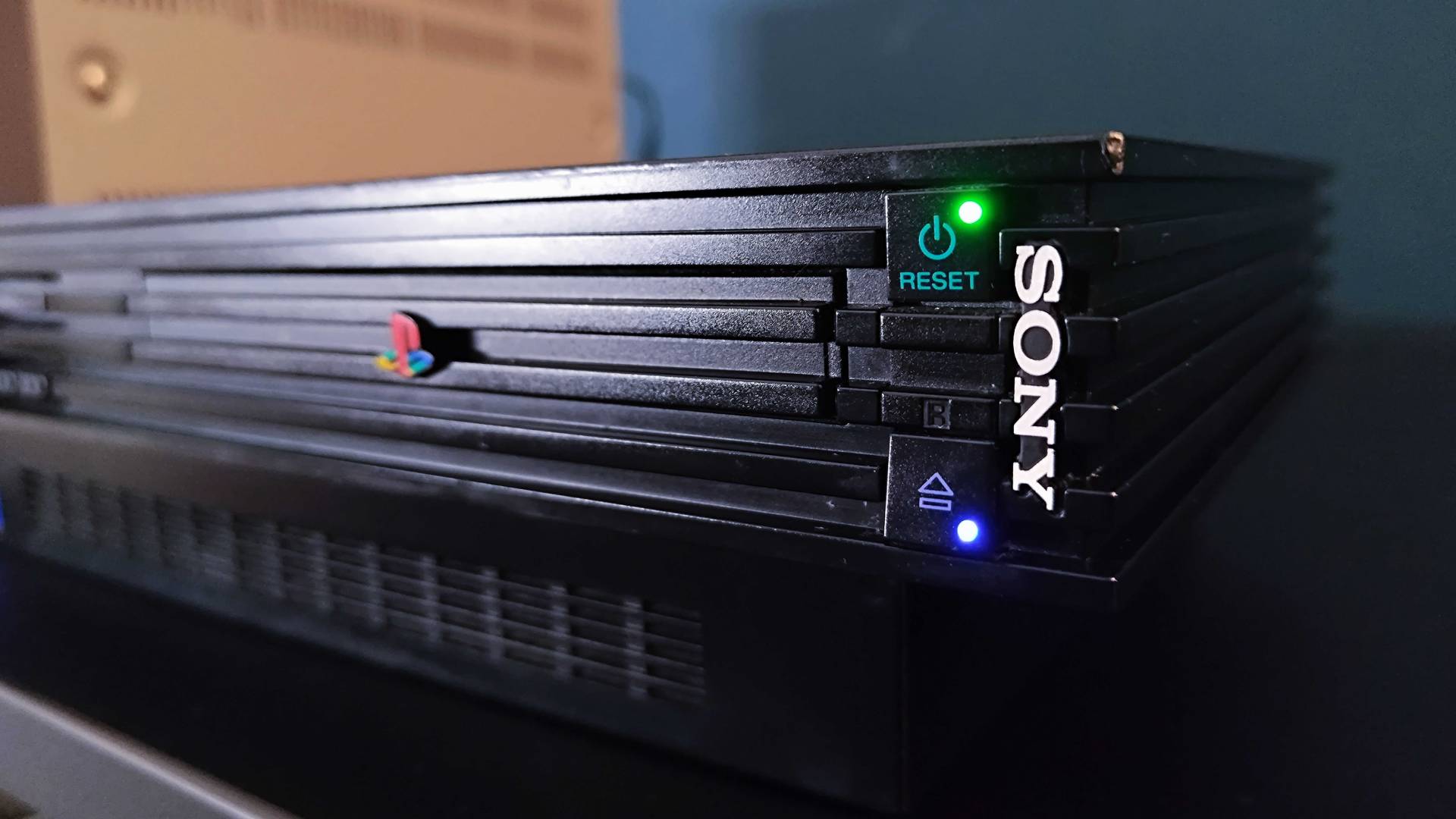
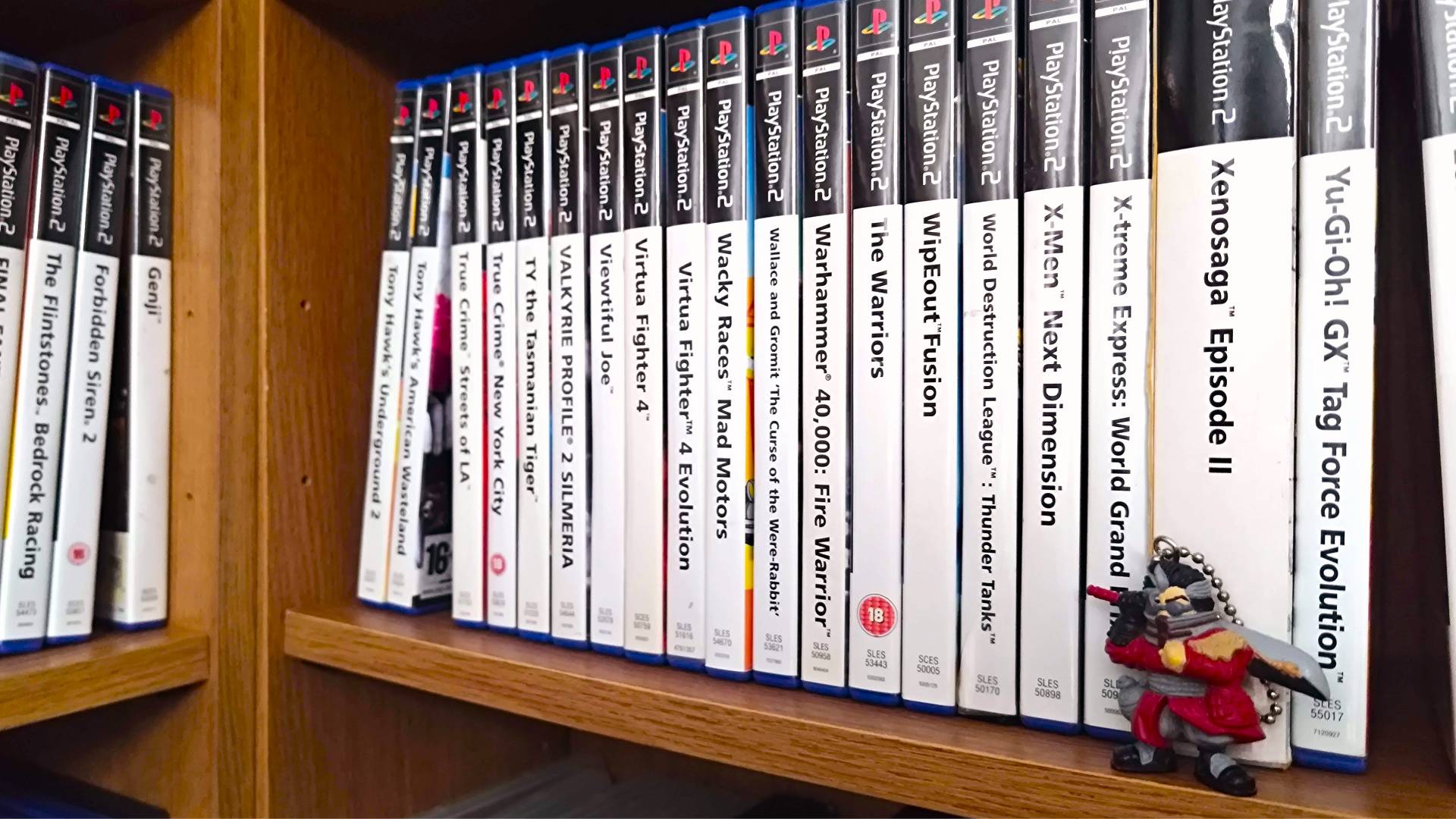
I haven’t been keeping count, but I’d say more people in my life have asked about playing PS2 games over any other classic gaming library. That makes sense given that it’s the best-selling system of all time, not to mention the kids who grew up with Sony’s best retro console contender are now adults with adult money. All it really takes is for someone to mention a bona fide classic like Silent Hill 2 or Grand Theft Auto: San Andreas and boom, a bunch of millennials are searching for how to dive back in.
Of course, there will be a bunch of you who didn’t sink hours of your teens into playing PlayStation 2 capers. Whether you weren’t into gaming at the time, or you’re a fresher-faced player, now is the perfect time to experience the retro console that arguably changed gaming forever, and it’s my goal to show you how to play PS2 games while getting the most out of your original hardware and new gadgets with emulation abilities.
PS2 original console versus emulation
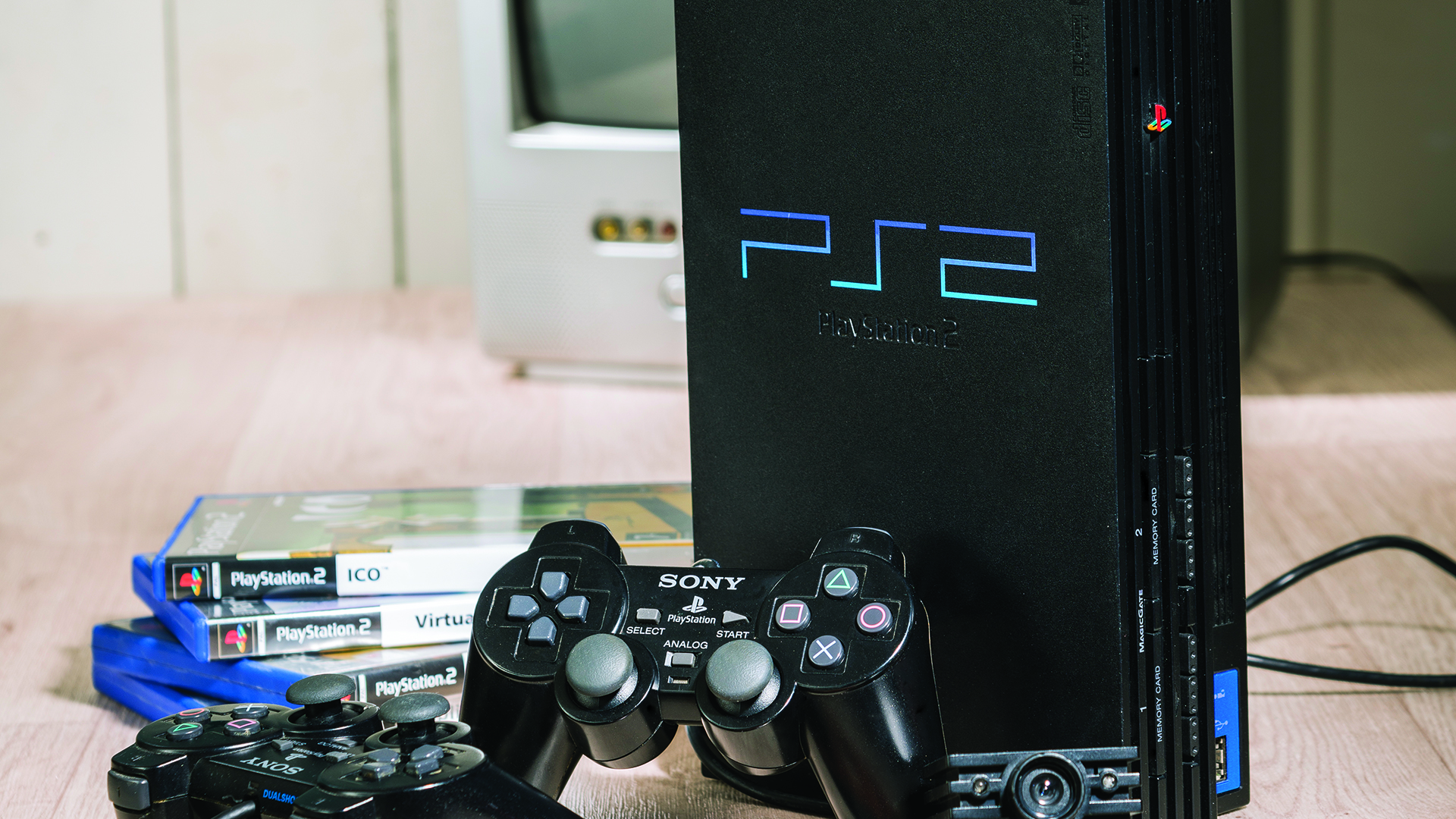
Before you step foot into some of the best PS2 games out there, you'll first have to deal with a crossroads. If you care about the physical experience of popping discs into a tray and letting the ominous start-up jingle send you back 26 years, you'll want to go down the original PlayStation 2 hardware route. The alternative path, however, leads to a world of emulators that'll enable you to play on everything from fancy new retro handhelds to even your PC.
I'll say up front that I'm a bit of a purist and fully believe the whizzing sound of discs and those green and blue LEDs piercing your eyeballs is all part of the full PlayStation 2 experience. That said, opting to emulate your PS2 collection if you've got original copies of games to back up comes with its perks, especially for those of you who prefer streamlined setups.
PS2 console vs emulation
Original PS2 console
- Easily play physical games
- Standardised performance
- Hardware compatibility
- Native controller support
- Natural, unaltered 480i visuals
- Requires adapters/upscalers for modern screens
Emulation
- Play at higher resolutions
- Let's you play on handhelds
- Perks like save states, fast-forwarding, and texture packs
- Controller mapping for USB pads
- Saves you from messing with discs
- Susceptible to bugs, glitches, and performance caveats
Don't worry, I'm going to delve into the ins and outs of using original PS2 hardware and DIY solutions. However, this initial rundown should help set you on the right PlayStation 2 path, as while you'll ultimately end up replaying gems like Jak and Daxter, how you go about doing so will feel drastically different.
Using a original PS2 console
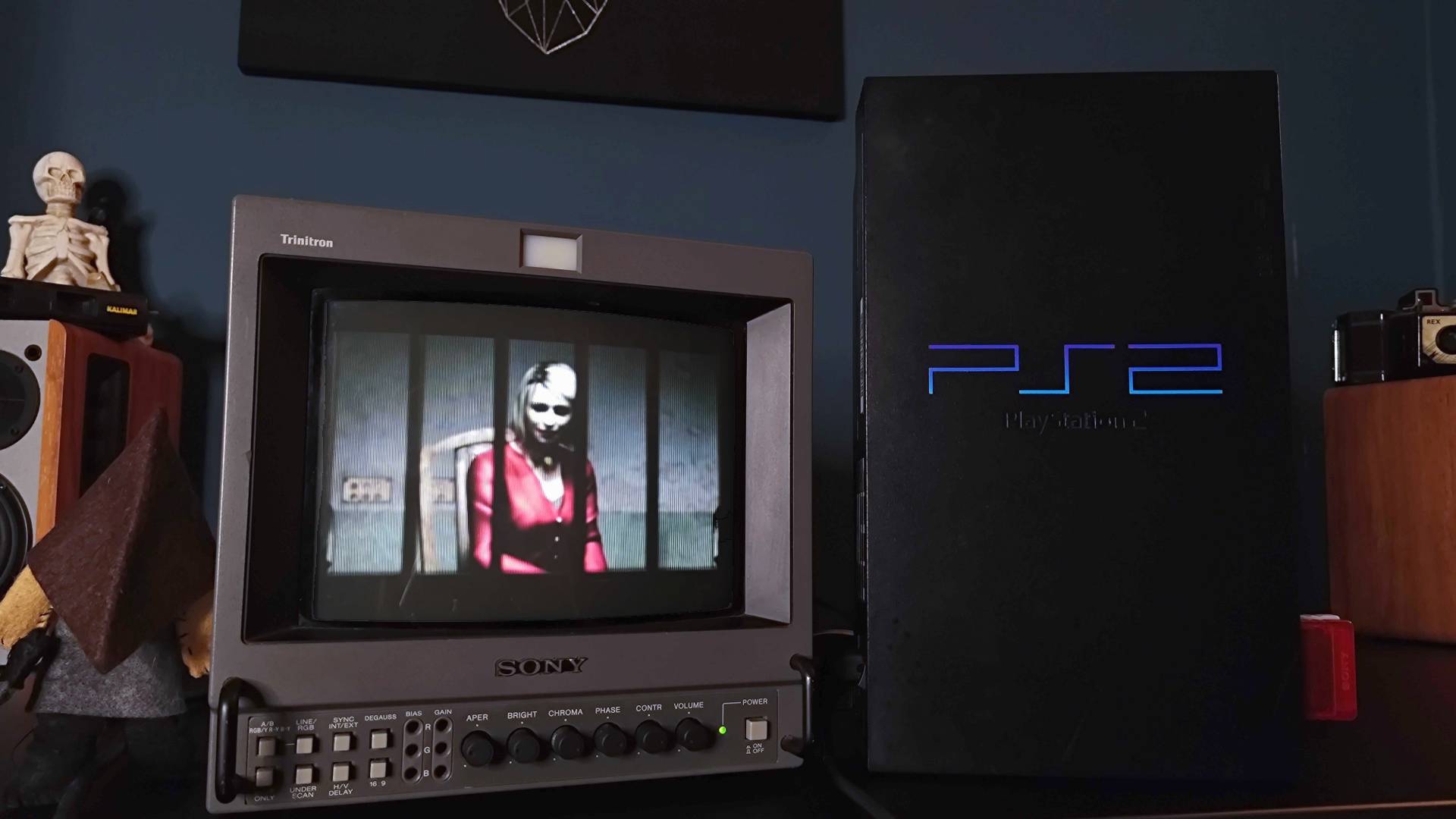
Look, I get it, the PS2 in the grand scheme of things isn't that old. Some of you will no doubt be shouting online about how it isn't a retro console, which will give others the impression using one isn't any different to a PS5. Sadly, that's not going to be the case for the majority of players out there, as chances are that your TV has completely ditched support for the 26-year-old machine.
Before I even get to that, though, I should check if you even have an original PS2 to hand. If not, then your best bet is to head out into the wild west that is the second-hand market and try and snag one. These days, you're looking at around $100 for an original "fat" model or up to $120 for the slim model, typically with a controller and the cords, on eBay in the US, while the UK site has listings for under £30.
Prices on retro consoles are constantly fluctuating, and you might be better off checking local ad listings or even Facebook Marketplace if that's your jam. Once you've got hold of at least the base console, you're ready to look round the back of your modern screen, scratch your head, and wonder where the old video cable is meant to go.
What you'll need
We're at another crossroads: if you happen to still have an old CRT TV from 20 years ago, or even something newer with traditional analogue video inputs, you're actually good to go. Just like back in the glory days when GTA: Vice City was all the rage, all you technically have to do is plug your standard RCA cable into your compatible display, and voila, you've got yourself a PlayStation 2 setup.
I should note that I am a CRT enthusiast, and while I am passionate about keeping old tube TVs going in the modern age, they're not for everyone. Yes, features intrinsic to the way the old tech works, like scanlines used by retro consoles, will give you super authentic visuals and help everything look "right", but you're still talking about standard definition on aging hardware that might not look so box fresh anymore.
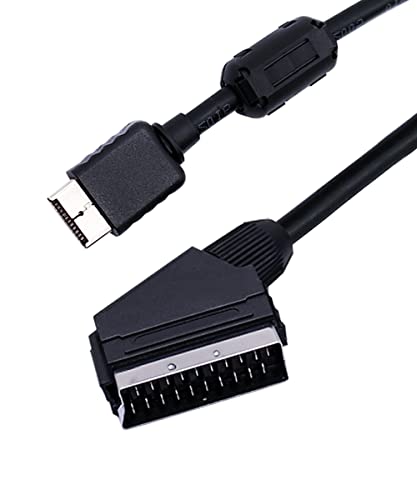
Using newer LCD panels that are still old enough to have RCA composite or component inputs also comes with major caveats. Plugging straight into those displays will save you looking into how to connect retro consoles to modern TVs and monitors, but screens aren't particularly good at upscaling the PS2's interlaced standard definition visuals to HD and beyond. That's where upscalers and adapters come in, as these doohickies will handle the signal for you, help it look sharp, and minimize input lag.
Connecting a PS2 to your modern screen
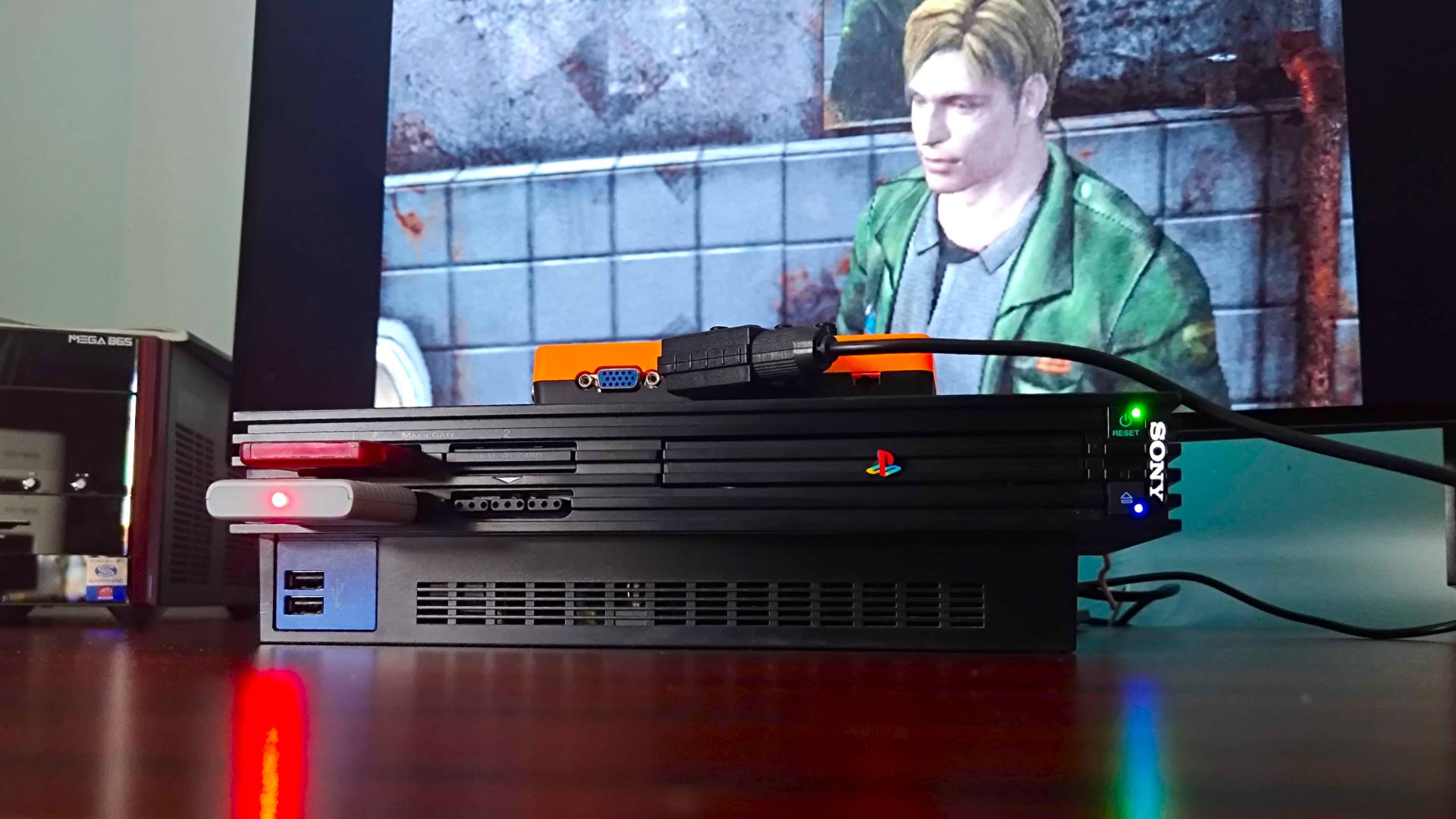
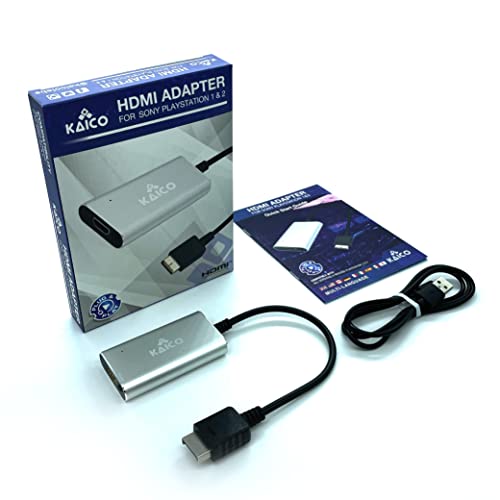
I've tested plenty of upscalers with the PS2 over the years, ranging from crummy HDMI adapters to dedicated devices. By default, you'll want to avoid generic boxes that take an analogue signal and spit out an "HD" signal through HDMI, as these will often introduce blur and input lag that'll spoil your PlayStation 2 experience.
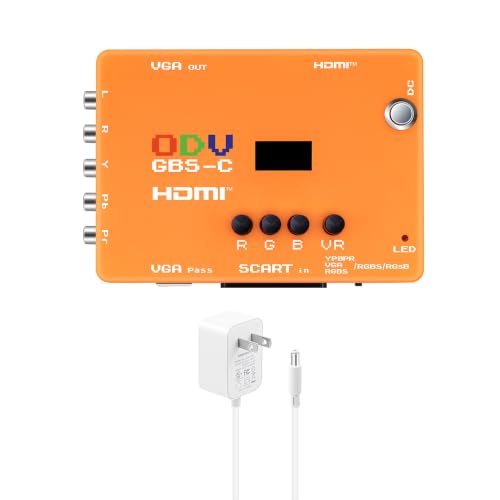
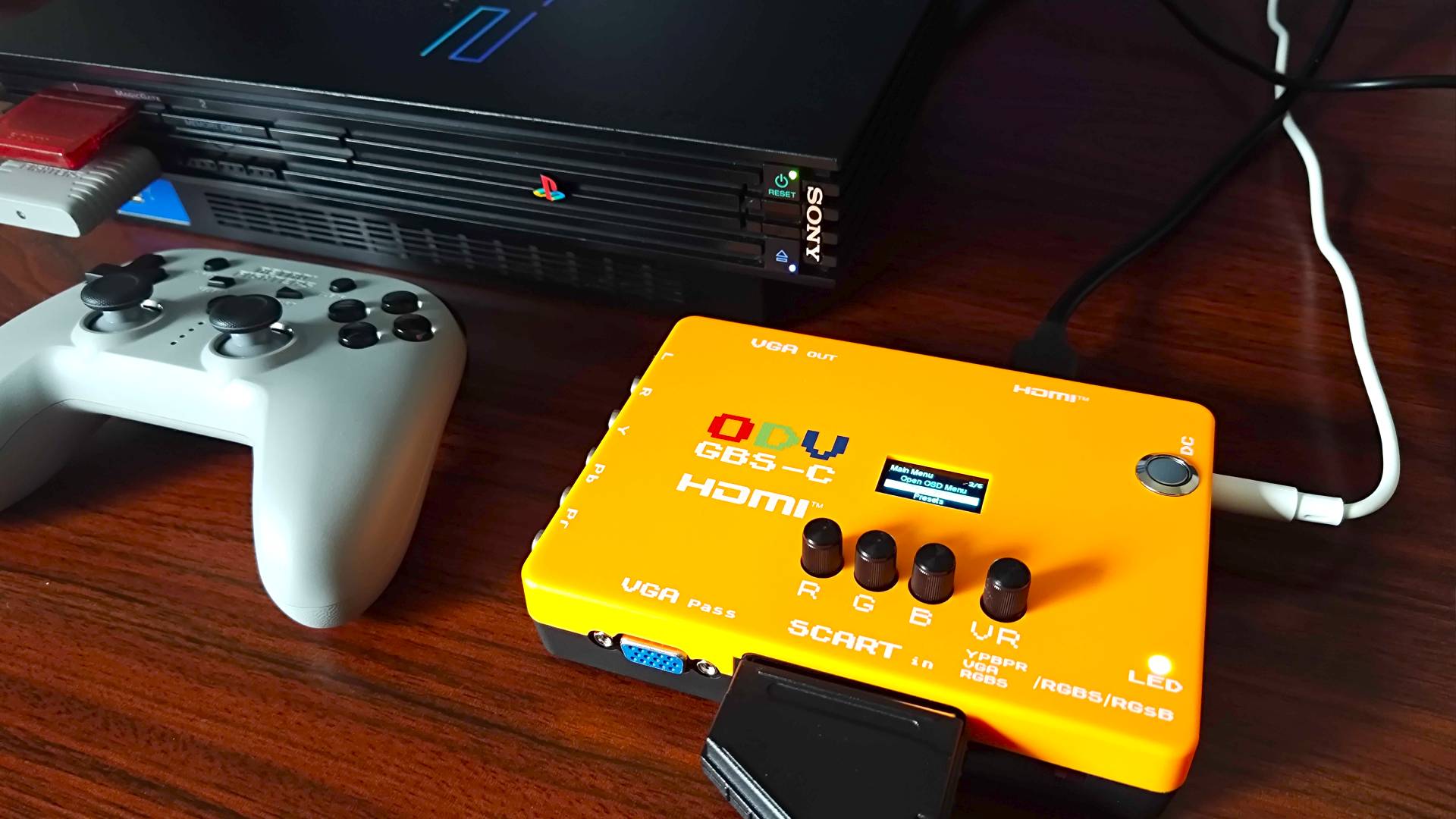
That said, I've identified some issues specific to Sony's console that can be a nuisance even when using half-decent adapters. The main issue stems from the PS2's interlaced video signal, as most devices will use "Bob" deinterlacing to turn visuals into full frames for your modern screen. This can introduce an annoying flicker effect that's impossible to ignore once you've spotted it, but devices like the GBS-C can kick those jitters to the curb and put out a nice clean RGB signal.
For other retro consoles, I tend to use the OSSC where I can since it can produce sharper results using line doubling over traditional frame buffer upscaling. The GBS-C has it specifically beat when it comes to PS2, though, as its motion adaptive deinterlacing ensures visuals are free from the jitter tied to stitching together odd and even image lines.
Here's Silent Hill 2 with motion adaptive deinterlacing off and on to illustrate the benefits:
I should note there are upscalers and adapters at each end of the budget scale. If you're really not too fussed about color accuracy, jitter-free visuals, and minimal input lag, direct HDMI adapters are a thing. They will do the trick for under $30, but I've yet to find one that doesn't do OG PlayStation 2 visuals a disservice. Plus, you'll be buying a gadget that'll only work with the PS1 and PS2, so the cheaper price tag becomes anything but if you then end up with more old systems.
Controllers and convenient accessories
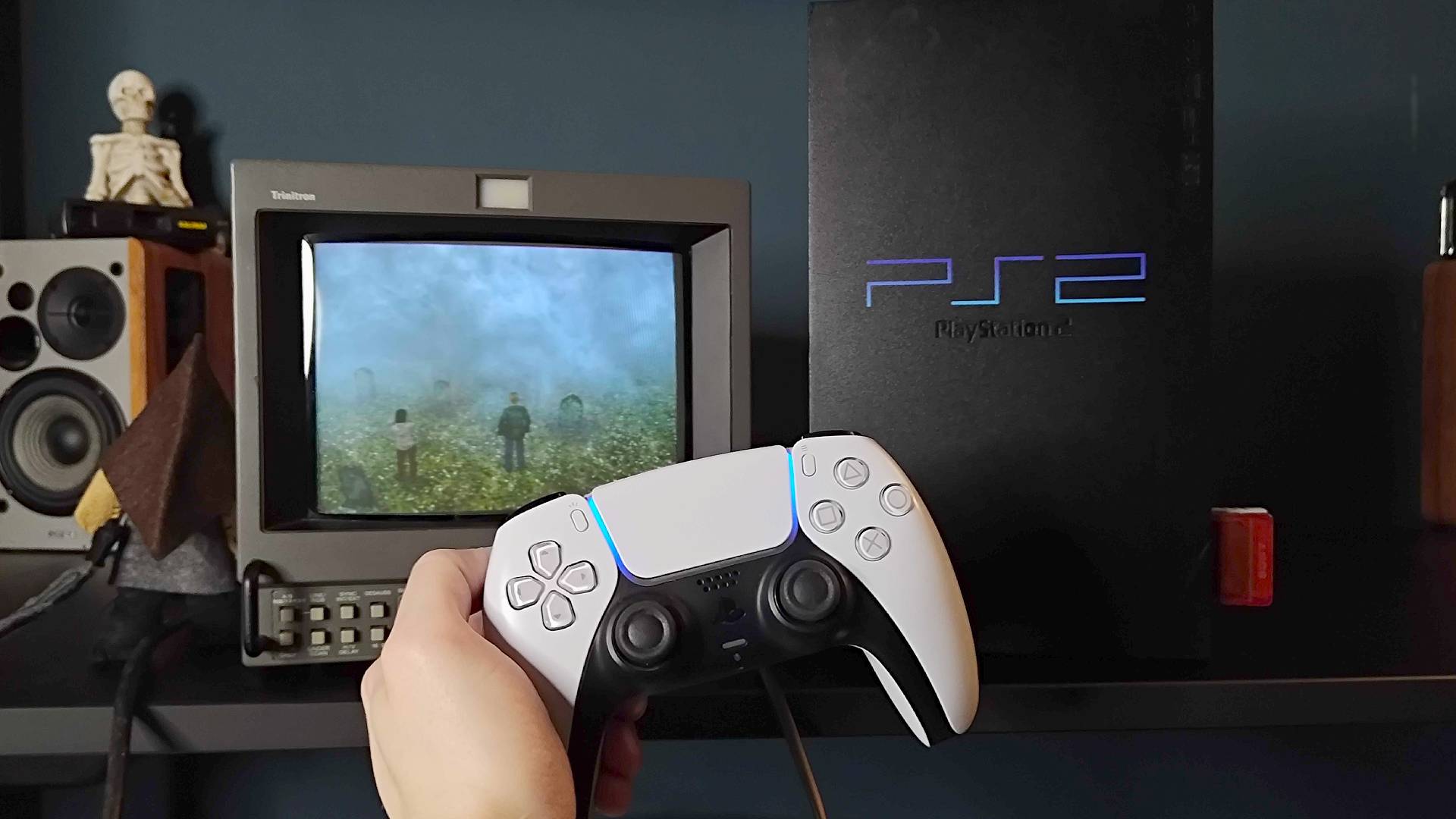
Provided that you've now got PS2 visuals blaring away on your screen, it's time to chat controllers. If you have an original DualShock 2 to hand, then you're technically all sorted on that front, but there are absolutely ways to go the extra mile and use new controllers that are less likely to be caked in years of hand grime.
I've got a literal bucket of PS2 controllers, but having also spent years refurbing old sticky pads, I'd say it's worth considering new options. There's nothing worse than crusty buttons deciding not to work halfway through a session, and even clean DualShock 2 pads will be starting to wear down inside. Plus, if you've accidentally grabbed an original PS1 DualShock, you'll find that it won't actually work with PS2 games, mostly because Sony likes to be really annoying.
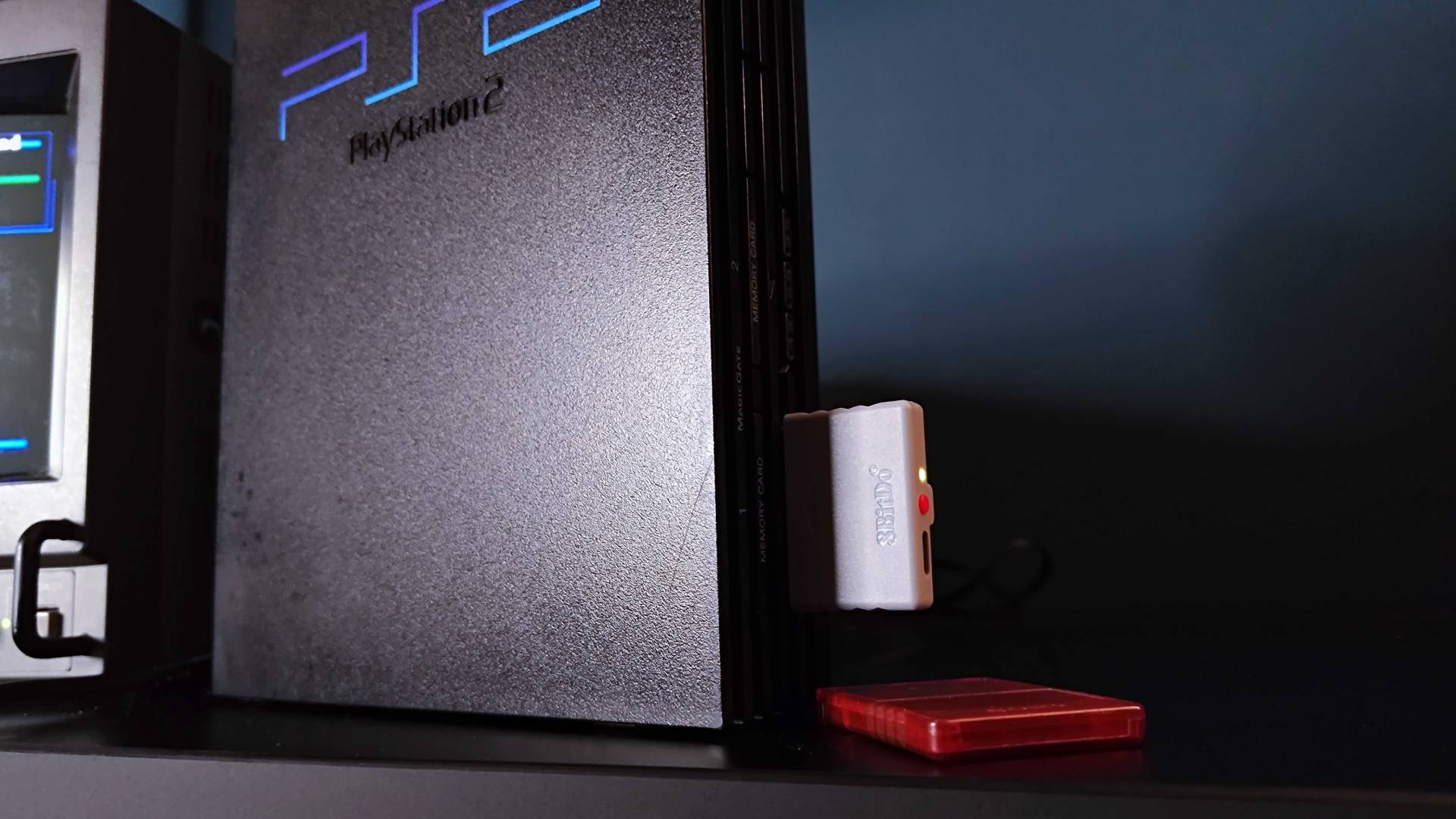
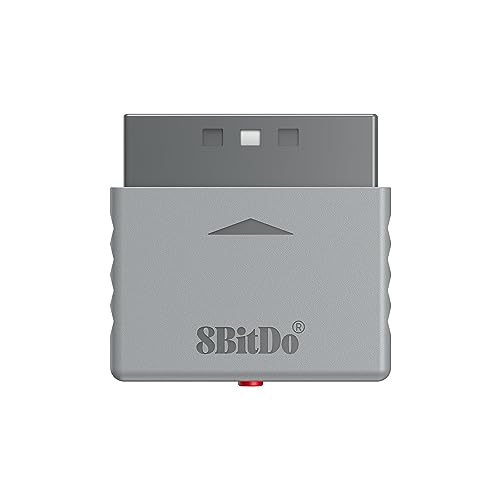
Thankfully, there are heaps of gamepad options for the old timer today, and as unholy as it sounds, you can even pair your PS5 DualSense with the PS2. That's thanks to the 8Bitdo Bluetooth Retro Receiver, a dongle that goes straight in the console's port and wirelessly links almost every pad after the Xbox One.
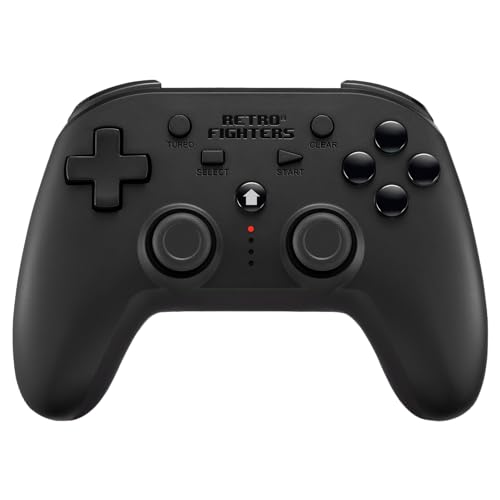
That's just one way you can use new controllers with retro consoles like the PlayStation 2, but you can also use entirely new pads. One of the best retro controllers I've tested for the PS2 yet is the Retro Fighters Defender, as it hooks up via its own low-latency 2.4Ghz adapter and will save you from the horrors of stick drift with Hall-effect thumbsticks.
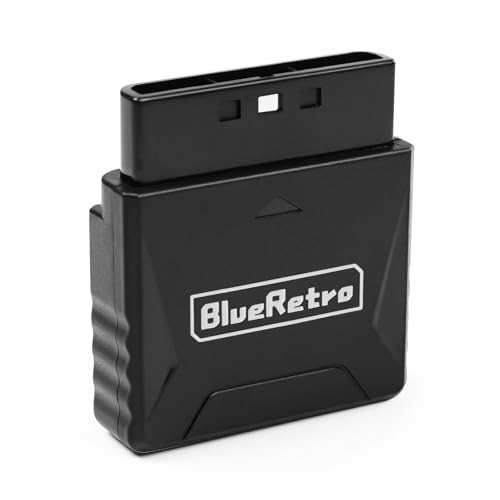
New gamepads and the best retro controllers purpose-made for the system will feel pretty slick across most of the PS2 library, but there's a genre of accessory that was almost obliterated post-CRT era: light guns.
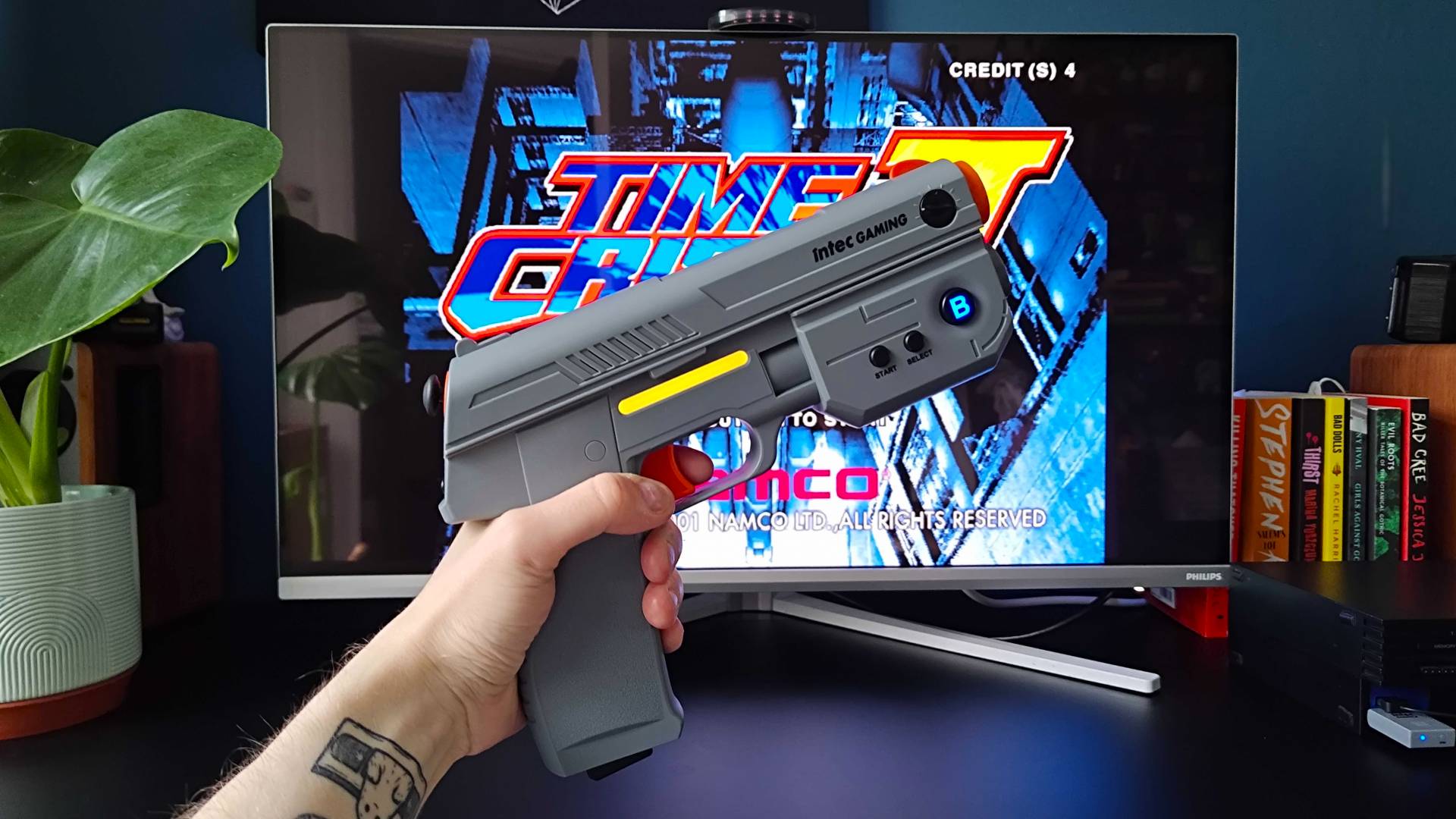
Unless you've still got a tube TV parked in front of you, PS2 light guns simply aren't going to work with your modern setup. Until recently, that meant that arcade clock-watching, gun-slingin' classics like Time Crisis 2 were impossible to play on new screens, but shiny new gadgets like the Intec Time Breaker Lightgun will help bridge the compatibility gap.
Light gun games might sound a bit niche to the unacquainted, but they were a big deal back in the PS2's heyday. The Time Breaker works to ensure you can revisit more of the console's back catalogue with ease today, and while it's a pricey peripheral, it provides surprisingly close to CRT aiming accuracy for a wireless controller that uses an IR sensor as a workaround.
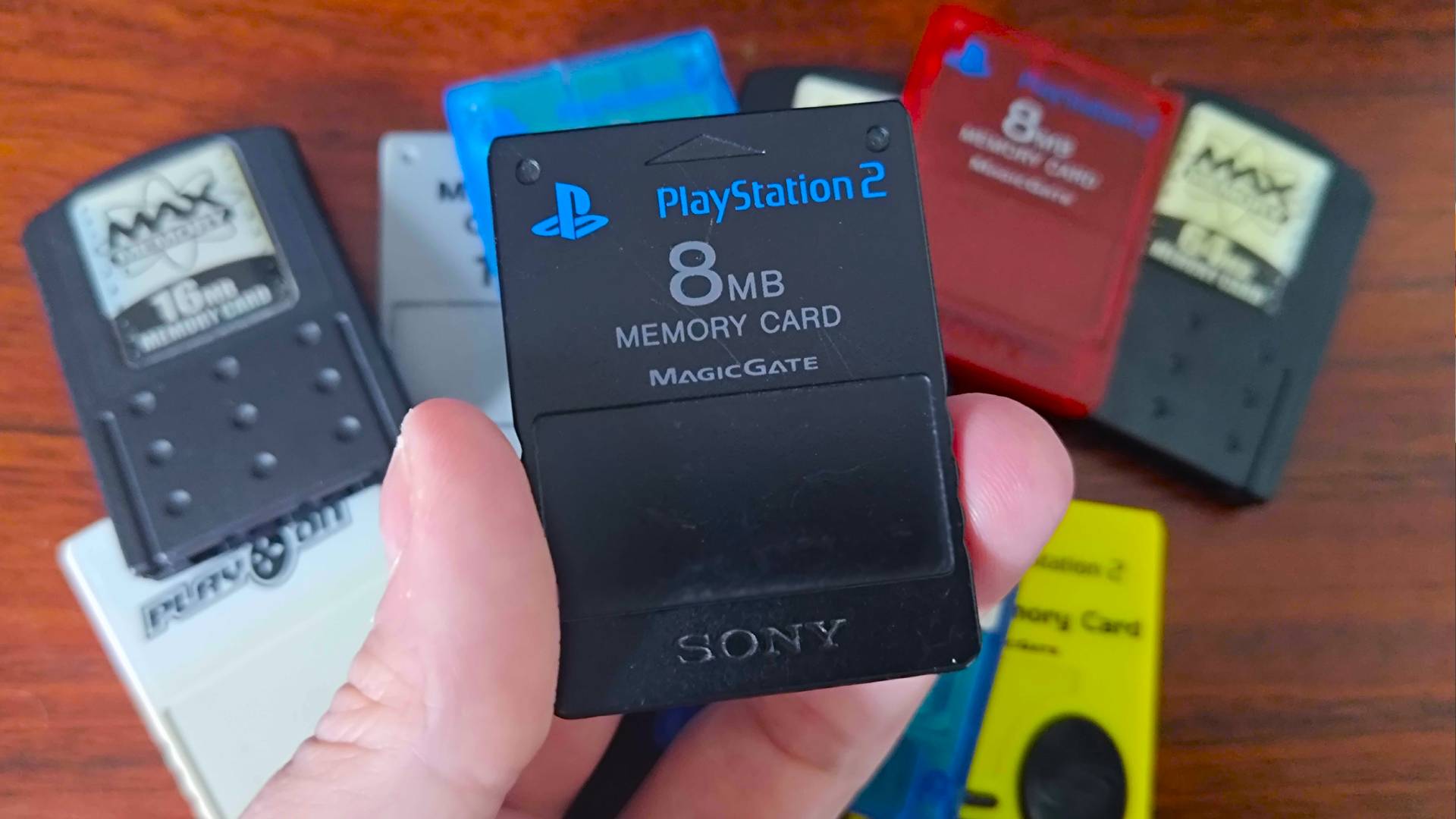
Moving on from controllers, another vital piece of the OG PS2 setup is sitting right above the gamepad port. That's right, I'm talking about the memory card, an ancient relic from before consoles packed terabytes of solid-state storage into their expensive shells. Unless you're a sicko and plan on completing Metal Gear Solid 3 in a single session, you're going to need one, and you've got options old and new.
If you do opt for an old PS2 memory card second hand, it's usually best to stick with official options by Sony. While not every third-party version needs to be avoided, cheaper cards can be prone to issues and corrupt your save files, which is always heartbreaking when you've not backed up the 150 you've spent on Final Fantasy X (yes, this happened to me back in 2001).
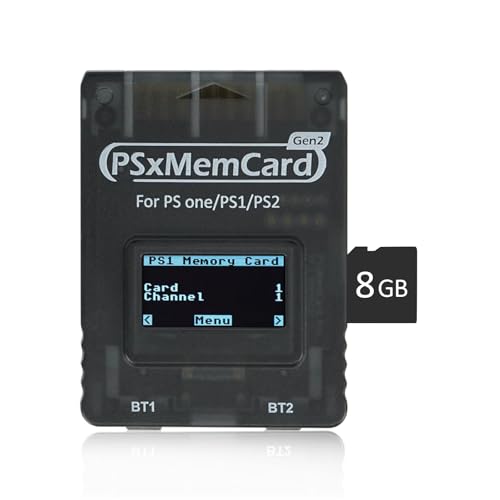
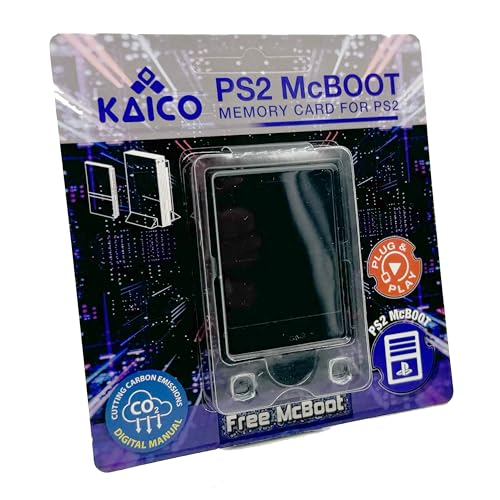
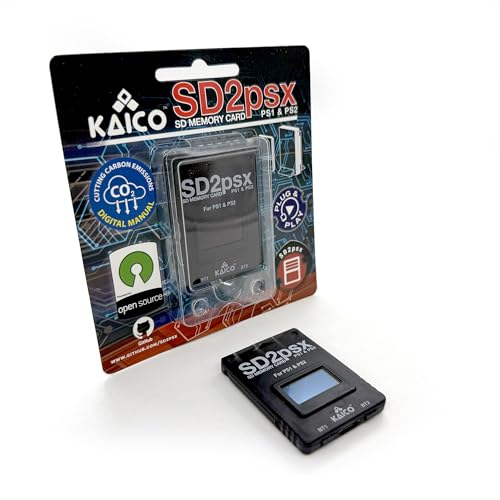
If you'd rather avoid old memory cards altogether, you can actually pick up brand-new versions that use microSD cards rather than old flash memory chips. This will sound bananas, but the likes of the PSxMemCard can hold the equivalent of 8,000 virtual PS2 memory cards in terms of blocks capacity, and it also boasts neat tricks like FreeMcboot support for running backups and homebrew games.
Playing discs on the PS2
If you've been following along, then the hard work of putting an OG PS2 setup together is over. You should be sitting with a controller in hand, ready to dive into old favorites, and that means spinning up some discs.
This isn't something you really need guidance for, as using those old DVD games is as simple as ejecting your PS2 disc drawer (or flipping the top if you're rocking a slim model), popping it in label facing upwards, and letting the magical "PlayStation 2" mark the start of your journey. You can even play PS1 games thanks to the handy dandy backwards compatibility chip within the console, but the pearls of physical media, and in turn deadly disc scratches, absolutely apply.
Basically, those of you picking up games second hand may very likely encounter games that simply won't work. This is one of the perhaps big forgotten drawbacks of older physical media, as the PS2's laser is particularly sensitive. Ultimately, if you end up at that dreaded cloudy red "please insert a PlayStation or PlayStation 2 format disc" screen, the jig is up, and you'll either have to get the disc resurfaced, try and buff out the scratch yourself, or get another copy.
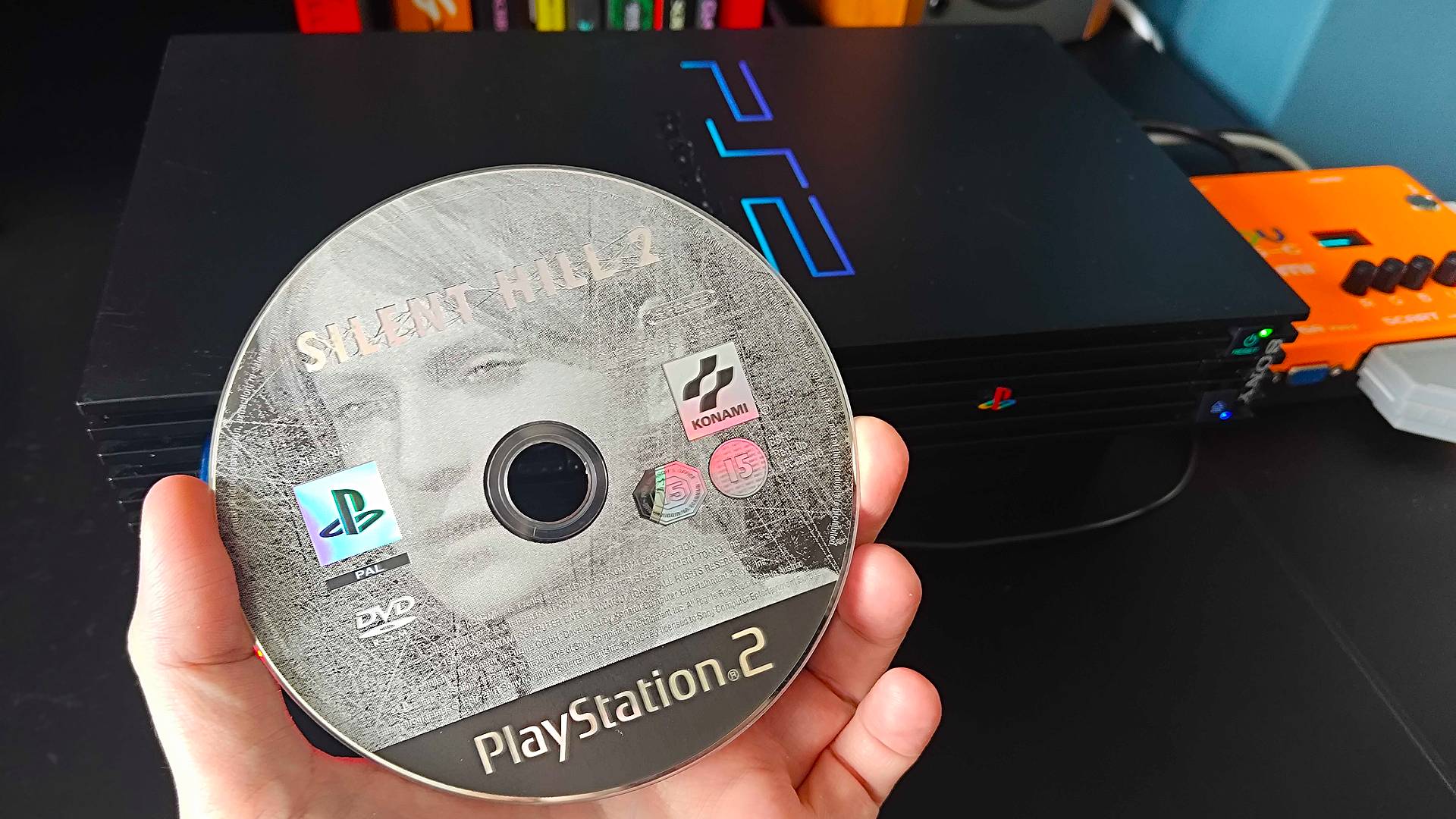
I'm currently experimenting with disc repair methods, largely to prove that Sony is wrong to discontinue PS5 discs despite the caveats. I'll check back in with an update once I've got some results to report, but if you don't have a local shop with a disc repair machine, or a way to repair it yourself, it could be worth instead using something like FreeMcboot to try and run a backup of your chosen game instead.
Given the price of some rarer PS2 games (cough cough, Rule of Rose), and even just general pricing across the library, I can see why investing in discs that could have issues is off-putting. It's all part of the OG console setup experience, and if you're going to spend hundreds on a collection, you may as well use the physical thing you've paid for rather than instantly opt for digitization.
Outside of games, the PS2 also plays CDs and DVDs. In fact, you could say it helped usher in the move from VHS back in the 2000s, and it could serve as a way to watch physical movies today. All the functions you'd normally get from a standalone player can be accessed using the DualShock 2, but Sony and third parties also released a DVD remote, and you won't even need a controller port receiver if you have an SCPH-70xxx, SCPH-79xxx, or SCPH-90xxx model since they have it built in (look for the tiny "R" under the power button).
Top tips
Peek at your TV ports
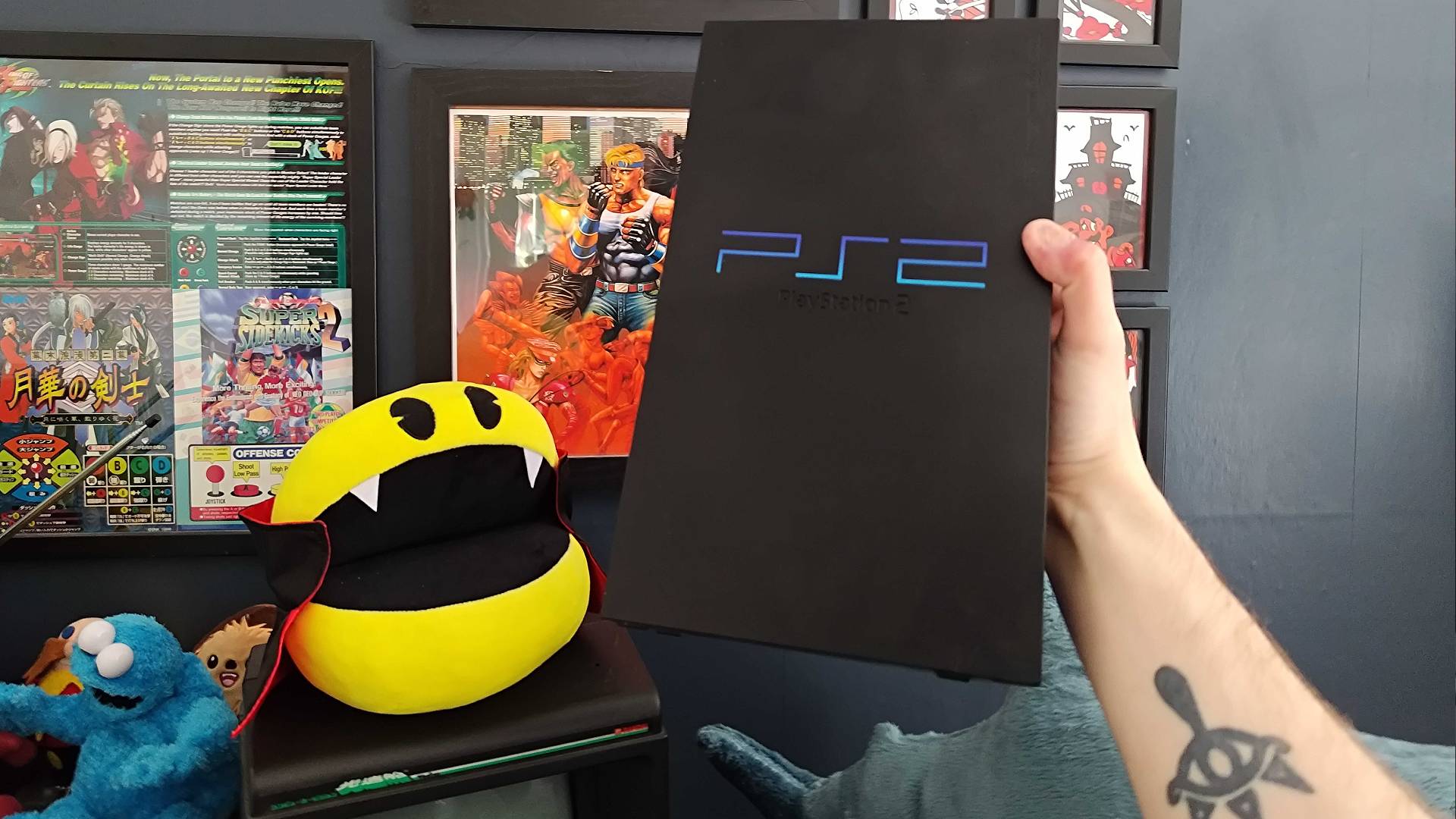
When putting together a PS2 setup, checking your TV or monitor ports is vital. If you've only got HDMI input to hand, you'll need an upscaler or adapter, whereas you'll be able to plug straight into older LCD screens and CRT TVs if you can find one.
Aim for "RGB" output
The PlayStation 2 supports RGB signals via SCART and component, and some games support a cleaner 480p signal over component. You can even hit 1080i in Gran Turismo 2 if you use the full set of RCA cables over just the yellow RCA phono.
Check your controller
If you're picking up a PS2 second hand, or you've got various PlayStation bits and bobs still around, you'll want to check your controllers. While the OG DualShock is near identical to the DualShock 2, it isn't going to work with PlayStation 2 releases.
Grab multiple memory cards
If you're aiming to keep onto saves, or plan on playing a lot of games, you should try and grab more than one memory card. Those originals only hold 8MB of data, so it's wise to buy multiple or invest in a memory card that can act like more than one unit.
Troubleshooting
My PS2 won't show up on my TV
If you've got the PS2 plugged into a functioning HDMI upscaler or adapter and you're getting nothing on screen, there's a chance the console is set to the wrong output type. If you're using an RGB cable and your system is set to use component (or vice versa), you can switch output types by powering the console on, waiting ten seconds, then hitting Down and X to reach the configurating screen despite no visuals. Then, hitting Down, Down, Down, X, Right, X on your controller will navigate to the right option and hopefully prompt visuals to reappear.
Wrong configurations are the most common PS2 output issue, but if you still can't get anything to show, it's worth swapping out your cable or upscaler. Failing that, your console might have faulty internals that deal with the video signal that need replaced.
I can't get imported games to run
The PS2 is a bit of a bugger when it comes to region locking, and your console will only play games from its country of origin by default. That means if you have an American NTSC system, it won't run games from Japan or Europe, and the same applies to those territories too. Historically, this is something modders have bypassed with physical mods, like a flip top for disc swap exploits, but modern softmods like MechaPwn can help you bypass region checks when using older models.
My PS2 Slim is scratching my games
Uh-oh! The PS2 Slim has an annoying issue with its laser ribbon cable, as it can poke up from the assembly and make contact with your disc. This will then leave a perfectly circular scratch on your disc, ranging from a singular line to a more severe scuff if the adhesive has lifted completely. To stop it happening again, you'll have to secure the cable back onto the shielding while ensuring it can still move with the mechanism, while you'll need to get your disc resurfaced to remedy games that will no longer play.
PS2 says "Please insert a PlayStation or PlayStation 2 format disc"
The dreaded "Please insert a PlayStation or PlayStation 2 format disc" is usually linked to scratched or dirty discs. If you're lucky, a quick clean with a microfibre cloth will get the game booting up, but if the disc is damaged, you'll need to buff out any heavy damage or resurface the game using a professional machine. In some instances, PS1 games that have been resurfaced too many times can struggle to run on the PlayStation 2's laser, whereas an original PlayStation will fare better.
Good to know
The best PS2 games of all time
Our list of the 25 best PS2 games ever will help you pick out the GOAT classics for your collection.
This PS2 upscaler kicks jitters to the curb
If you're looking for an upscaler that'll ping PS2 visuals to your TV with no jitter, the GBS-C is the way to go.
This PS2 upscaler kicks jitters to the curb
If you're looking for an upscaler that'll ping PS2 visuals to your TV with no jitter, the GBS-C is the way to go.
How to use new controllers with retro consoles
If you'd rather avoid using a stick old DualShock 2, there are ways to use modern pads with your PS2, including the DualSense and newbies.
PS2 Emulation
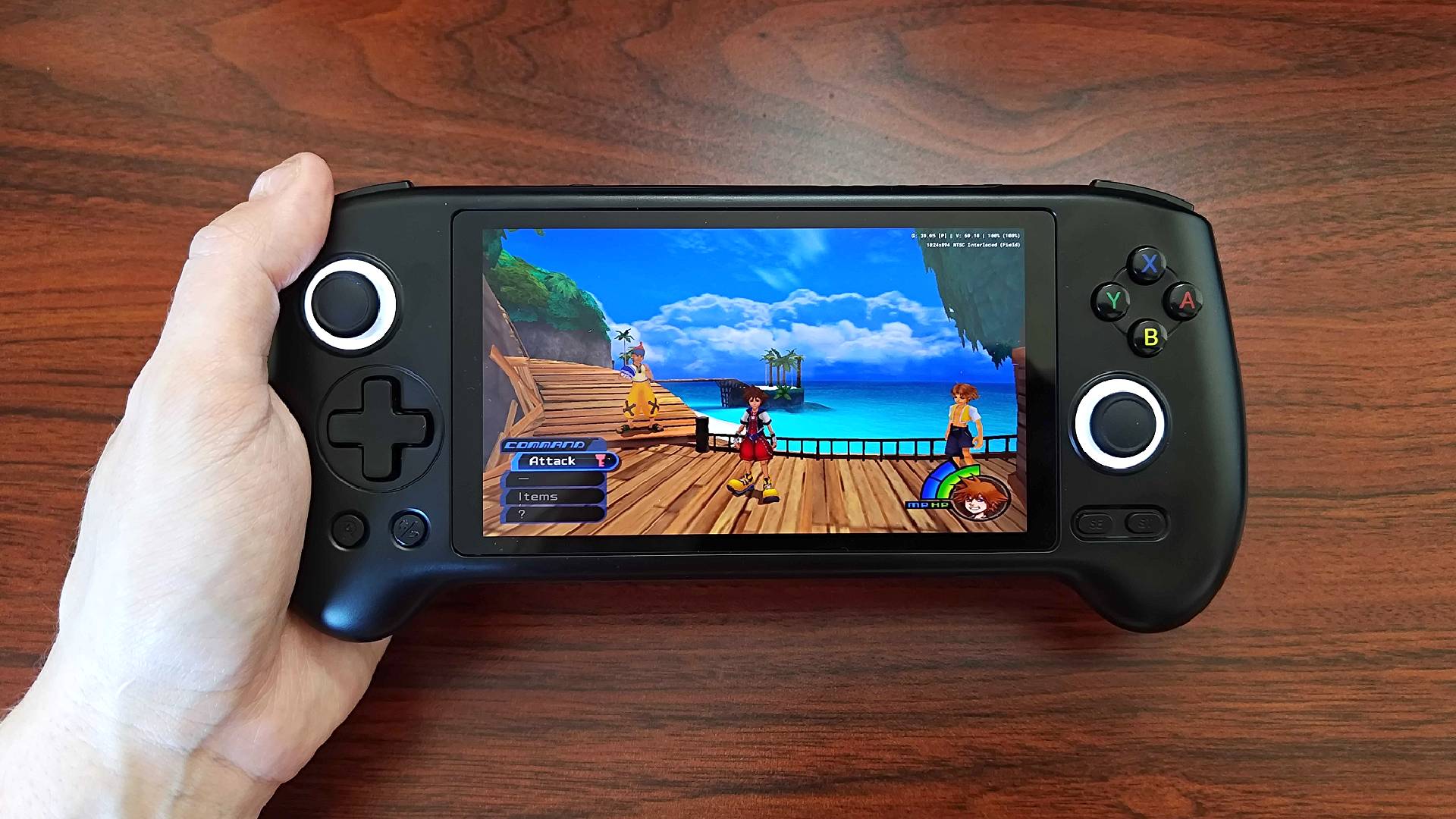
Those of you who prefer the new devices of today, or simply don't want a retro console taking up space in your house, will be thinking about PS2 emulation. The catch is that to legally play classic PlayStation 2 games on a device of your choosing, you will actually need to own an original system, copies of games, and the means to use both software and your system's BIOS in emulators.
What you will need
The good news is that it's easier to emulate PS2 games without sailing the seven seas now than before. The process boils down to extracting your console's BIOS and digitizing your collection, as once you've got both to hand, you'll have everything you need to start using popular emulators like PCSX2 for Windows, Linux, and Mac, or NetherSX2 on Android.
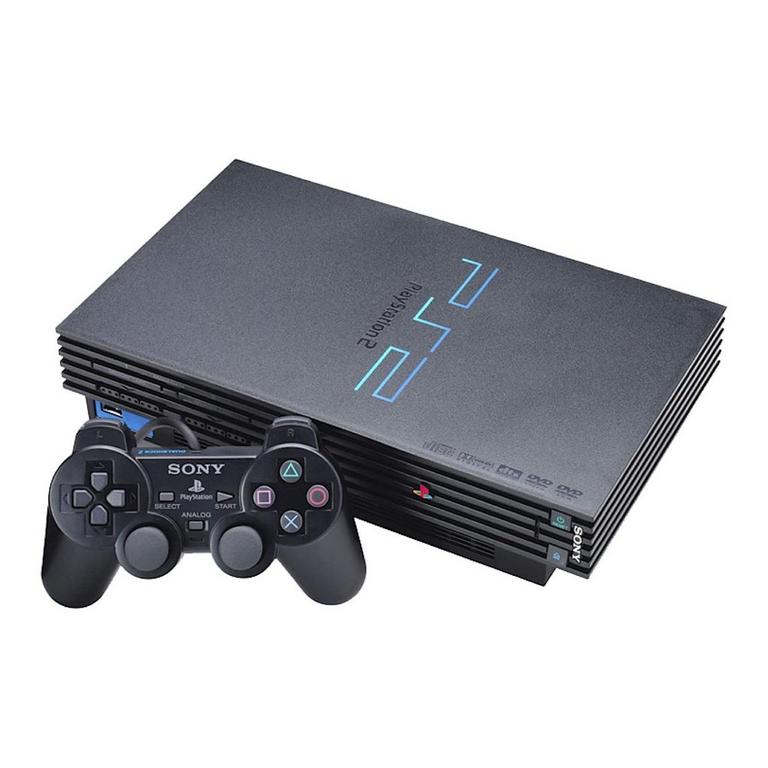
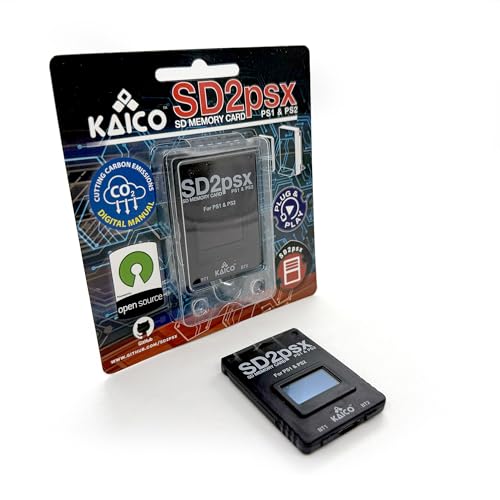
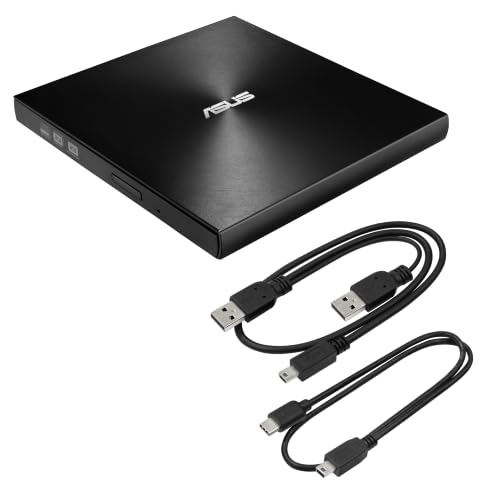
You'll of course need a PS2 console to do any of this, so make sure to hunt one of those down first along with some games. Once those are in hand, you can use homebrew tools like FreeMcboot (via something like a PSXMemCard) and a utility like Biosdrain to pull a copy of the BIOS from. To back up your games, you'll then need a DVD burner and disc-imaging software like Imgburn to turn your physical discs into digital .ISO files for use in emulators.
Retro handheld options
Most of you out there with PS2 emulation on your minds will be thinking about handhelds. We're pretty much at a stage where you can buy Linux and Android portables that can run most of the PlayStation 2 library with ease, boasting full controls and specs that'll help each classic shine.
Key specs to look out forDisplay
1920 x 1080
Operating system
Windows, Android, or Linux
Controls
Two thumb sticks, d-pad, four face buttons, L and R back bumpers, L and R triggers
Chipset
Qualcomm Snapdragon 865 or better
RAM
6GB or more
Storage
32GB minimum
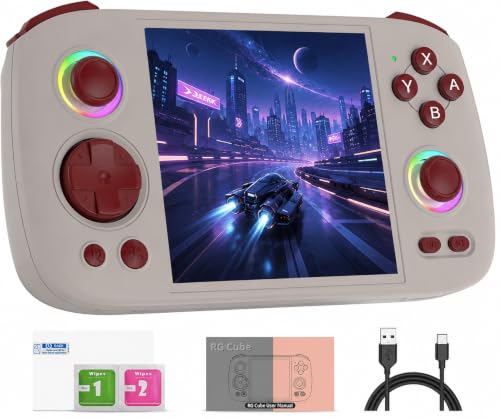
I've tested plenty of handhelds over the years, and PS2 games have always been trickier to emulate than other consoles. You can get away with using some upper mid-range handhelds with Unisoc T820 chipsets, like the Anbernic RG Cube, but you'll see slowdown in more demanding games like God of War II, Jak and Daxter, or Gran Turismo 4.
You'll also be primarily playing at original native resolutions, rather than taking advantage of the lavish screen specs handhelds can provide. Therefore, I would advise spending a little more on something like a Qualcomm Snapdragon 865 or beefier, like the Retroid Pocket 5 or Mangmi Pocket Max, as you'll then have room to play with x2 or x3 scaling.
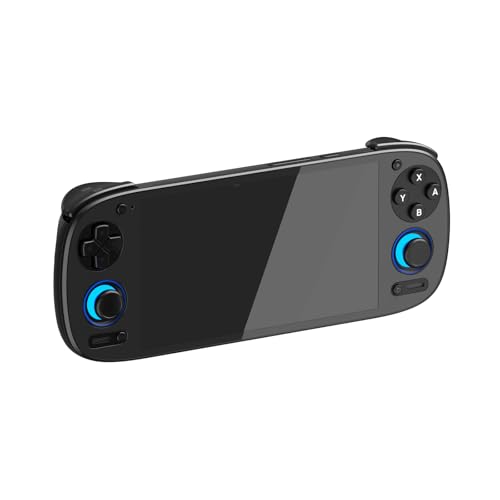
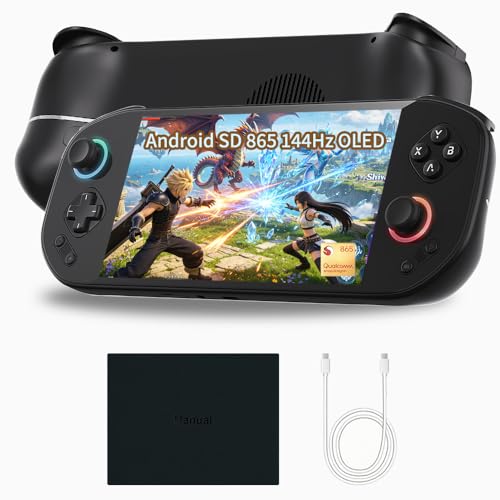
That in itself will justify your decision to emulate over using the original PS2 hardware. However, there's certainly something nice about taking your collection with you and treating your thumbs to Hall-effect joysticks and tactile buttons while blasting the benefits of new screen tech into your eyeballs.
How to play PS2 games on a handheld
Many of the best retro handhelds out there already come with emulators pre-installed. What they won't provide is a BIOS file or games, and if they do, you should discard these and use your own. If you've not got any emulators already loaded, you'll find versions for Linux and Windows based on PCSX2 at the official site or third-party derivatives on the Google Play Store if you're using Android.
- Install a compatible emulator like PCSX2
- Add your PS2 BIOS via the setup screen
- Let the app scan your game collection folder
- Launch your chosen game to check performance
- Use the settings to tweak scaling or graphics API if required
How to play PS2 games on PC
If you're using your own PC-based emulation setup, playing PS2 games pretty much involves the same steps as on a handheld. In fact, if you're using a portable PC like the Steam Deck OLED or something Windows-based, you'll be able to fetch PCSX2 directly from its maker and use the device's built-in controls. On a desktop rig, you will have the extra step of providing your own controller, but the emulator will auto-map gamepads using XInput.
- Download and install PCSX2
- Import your PS2 BIOS using the setup screen
- Scan the folder with your game collection files
- Plug in a compatible USB gamepad and map buttons in the settings menu
- Check performance and tweak graphics/scaling settings if required
How to play PS2 games on iOS
Playing PS2 games on iOS devices is little more complicated compared to Android phones and handhelds. That's primarily due to the fact emulators like Play! or iPSX2 aren't on the Apple App store, meaning you'll need to sideload them onto your iPhone or iPad using a tool like SideStore. It's also best to use a fairly new model of either with good single-core CPU performance (newer than iPhone 15 Pro or an iPad with an M-series chip) as you'll otherwise run into performance issues.
- Install SideStore on your iOS device
- Download the latest IPA release of Play! or iPSX2
- Sideload your emulator via SideStore
- Launch the app to configure folder structures
- Place your BIOS and ISO game files in the relevant folders
- Let the app scan for files and launch your game
Swing by the best gaming handhelds for portables that'll run games old and new.